
How to Save Papa's Games Progress

How to Save and Transfer Your Papa’s Game Progress
Papa’s Games are some of the most played and loved titles from the Flash era, and they’re still a hit today on PapasWingeria.io. From Papa’s Pizzeria and Freezeria to Cupcakeria and beyond, these games have entertained millions of players for years. But there’s one frustration almost every fan has run into, your progress doesn’t automatically transfer if you switch computers or browsers.
Leveling up in these games can take dozens of hours. Each day in the game can be short, but completing ranks, unlocking new customers, earning tips, and fully upgrading your shop takes serious time. Some players spend weeks climbing from a new hire all the way to the top ranks, unlocking every customer and ingredient along the way.
Losing that progress because you switched browsers, cleared your cache, or moved to a new computer can be a nightmare. Without a backup, you could find yourself starting over from Day 1. No upgrades, no high ranks, and all your parade of unlocked customers gone.
That’s why it’s important to back up your Papa’s Game save data. By saving a copy of your progress, you can quickly restore your game on another browser or computer, avoid losing your upgrades, and continue right where you left off.
In this guide, we’ll show you exactly how to back up your game progress step by step so your hard-earned ranks and customers stay safe. Trust me, it's easy, it's safe and only takes 30 secs of your time.
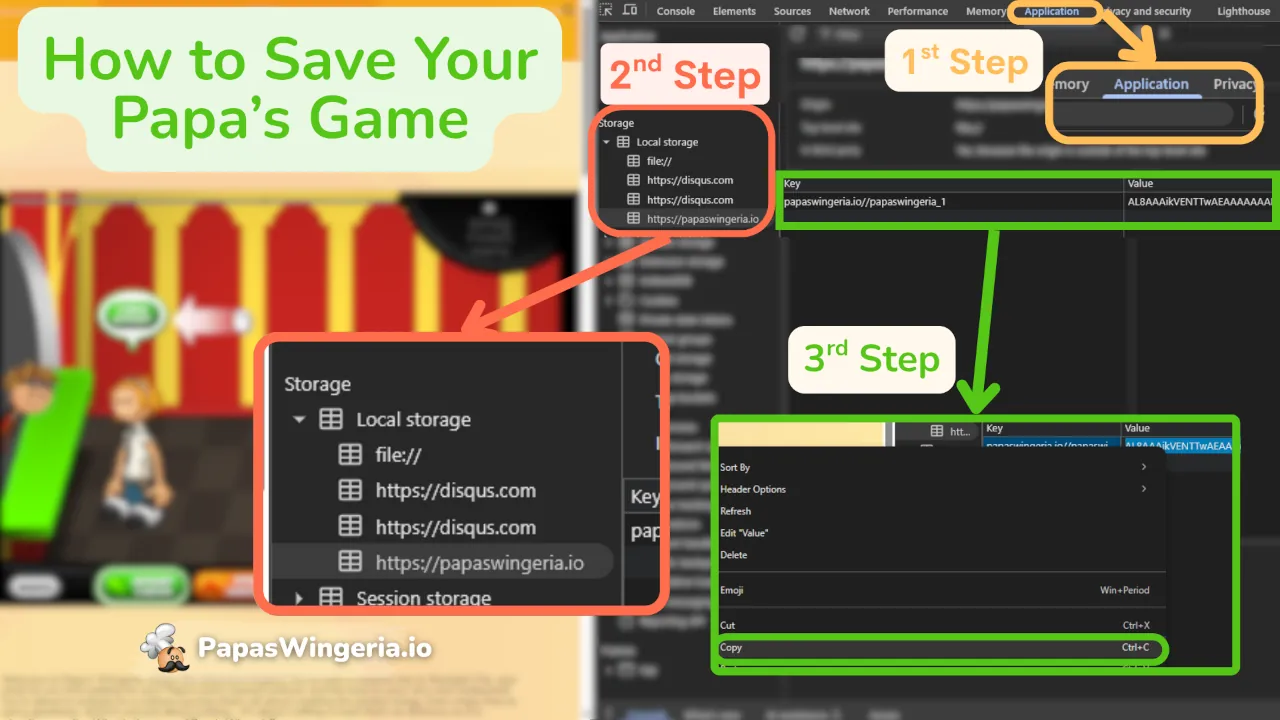
Here’s how you can save your Papa’s Game progress and load it on another browser or computer:
Step 1: Open Developer Tools
- Go to the PapasWingeria.io page, where your Papa’s Game is hosted.
- On Windows, press Ctrl + Shift + I.
- On Mac, press Command + Option + I.
- A developer panel will open at the right or bottom. Click the Application tab at the top. It's next to memory tab. If it's hidden click on the right arrow to access it.
Step 2: Find Your Save Data
- On the left-hand menu, expand Local Storage.
- You'll see different websites like Disqus. Find and click on https://papaswingeria.io.
- In the search/filter box, type the name of the Papa’s Game you’re playing (for example wingeria or scooperia).
Step 3: Copy Your Save Value
- Look for a long string of text under Value. This is your save file.
- Right-click on the value select edit value first. Select all of the text by pressing (Ctrl+ A) then right click again and hit Copy (or press Ctrl+C).
- Paste this text that is formed of random numbers and letters into Notepad, Google Docs, or email it to yourself for safekeeping.
How to Load Your Save File on Another Device
- Open the game on the new browser or computer.
- Play the game briefly so it creates a save file.Giving a name to the slot and skipping the cutscenes is enough.
- Open Developer Tools again (Ctrl + Shift + I).
- Go to the same Local Storage location and find the value.
- Replace the new value with the one you saved earlier.
- Refresh the page, and your progress should appear in the game.
Tips for Keeping Your Progress Safe
- Always back up your save file when you finish playing, especially before clearing your cache.
- Store your save text somewhere secure (cloud notes, email, or a backup file).
- If something goes wrong, you can restore your save instantly without starting over.
Papa’s Games can take hours to master. So it’s worth a minute to make sure your hard work is safe! If you have more questions or support, contact us!




Comments